Team Website
Sign up using Google Account:
Sign up with another email account:
Request Help: text me at 9162210564
How to Chat in Zulip:
The essentials:
Pt. 1
Pt. 2
Pt. 3
Coming soon... how to change settings
Request Help: text me at 9162210564
Guide
Short video walk through on signing in with a Google account.
Step 1.
CLICK THIS "COPY URL" BUTTON
This is our server URL.
Step 2.
1. Download the app and open it.
2. You'll be asked to Allow notifications. Say yes.
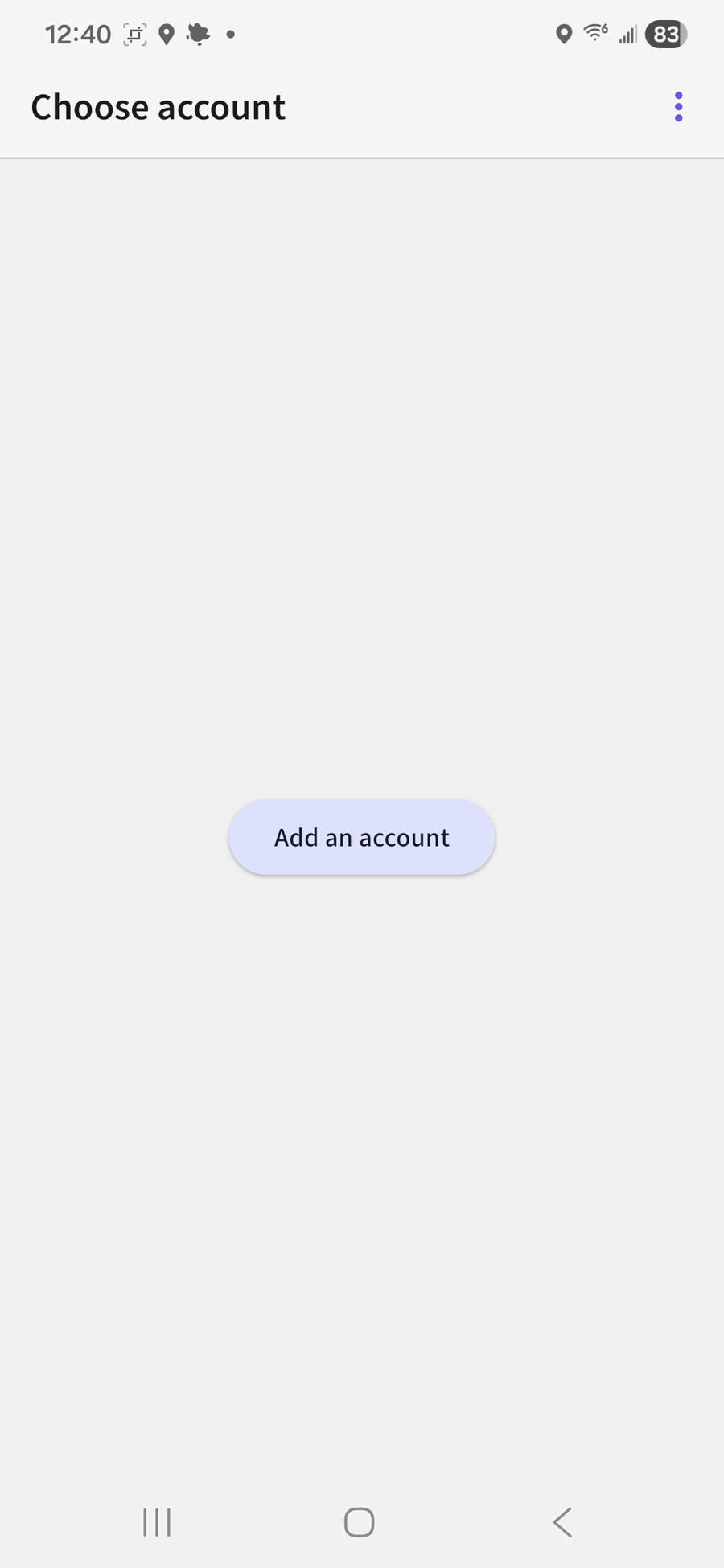
3. You'll see this:
Step 3.
In the app, Click that button:

Step 4.
Paste (or type) our SERVER URL
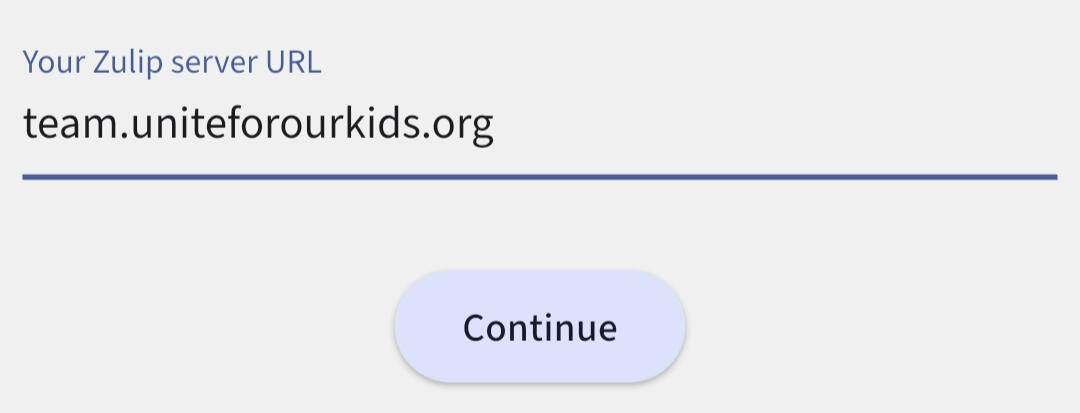
Then Press continue
Step 5.
Click sign in with Google.
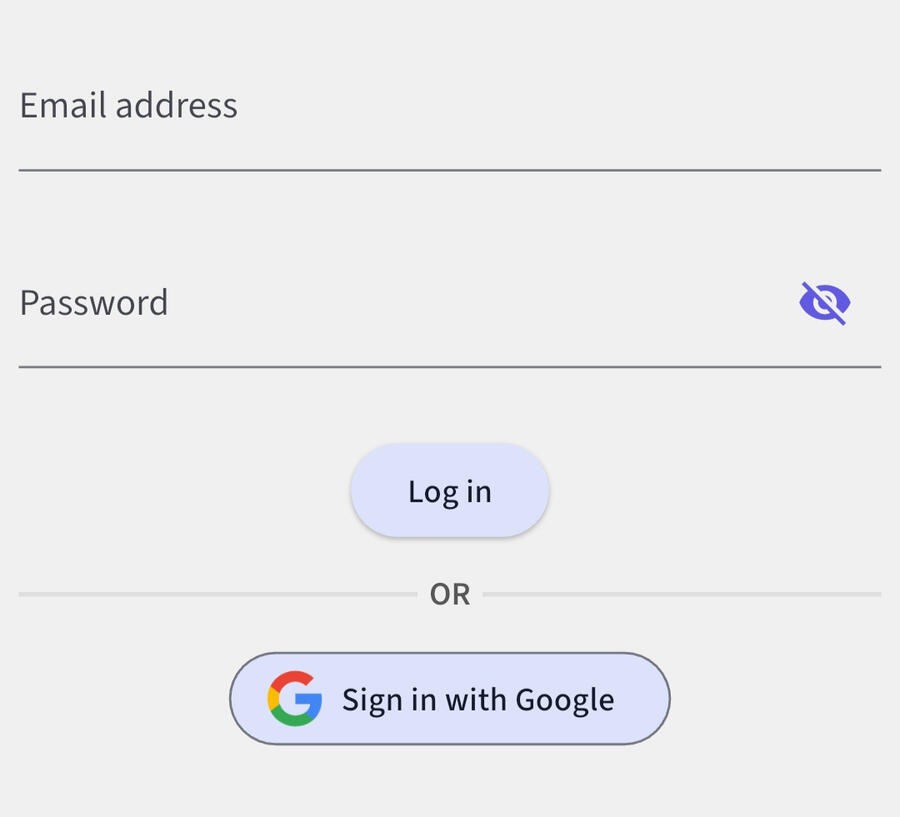
Follow google's instructions as it creates the account for you. You'll end up logged into the app, ready to use it.
DOWNLOAD ZULIP HERE
Request Help: text me at 9162210564
Logging Into Zulip
Step 1.
NOTICE: Once you're signed up, this will take you to the browser version of Zulip.
Ignore that place and come back here to download the app.
Step 2.
CLICK THIS BUTTON
When asked for "Your Zulip server URL",
Paste the url you just copied.Or type the following:
team.uniteforourkids.org
When you first open the app
you'll see:

Press that button.
Paste or Type our server URL:
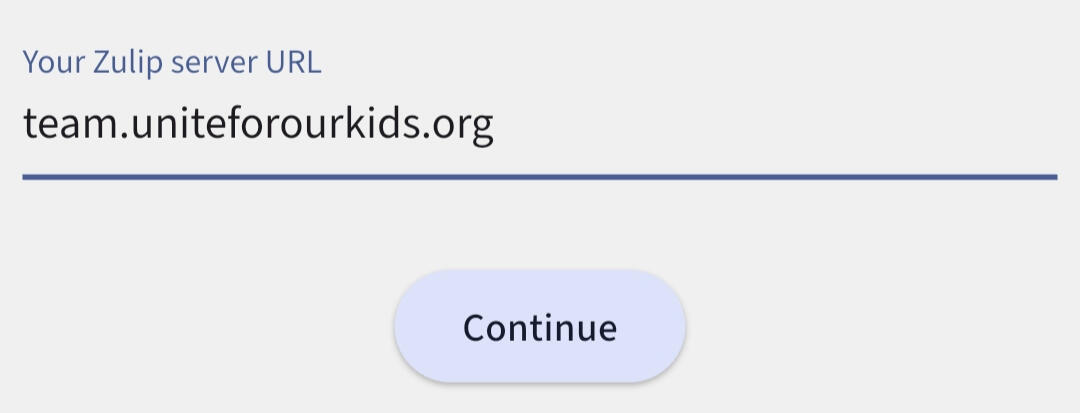
Press continue.
Step 3.
Log in using the account you signed up with.
You should see that you are now in the app.
If not text me for help by clicking here: 9162210564
Download the app here
*That's: team dot unite for our kids dot org
team dot unite for our kids dot org
If you are not signed into the app, it's on me. I'll try to figure it out for you.
Tap “Sign in with Google” (this creates your account on first use)
Sign Up
- Continue with Google Account (easiest).
- Or sign up with any email (just sends confirmation email)
NOTE: There's a difference between browser view of Zulip, and using the actual mobile app.
Browser version not recommended for phone use because the format is cramped.
However, there are certain settings you can only adjust when using zulip in the browser or desktop app.
By having step 1 be sign up, and step 2 be returning to this Loggin Into Zulip page, it keeps the users in the browser.
Then once they've downloaded the app.
They only have to return to the browser once or twice, in order see the instructions for log in.
Team documents coming soon...
Text